

SHORT ANSWER
Moving from WooCommerce to Shopify is safe if you do it in order:
- Back up everything and list what you have
- Set up Shopify and rebuild the design
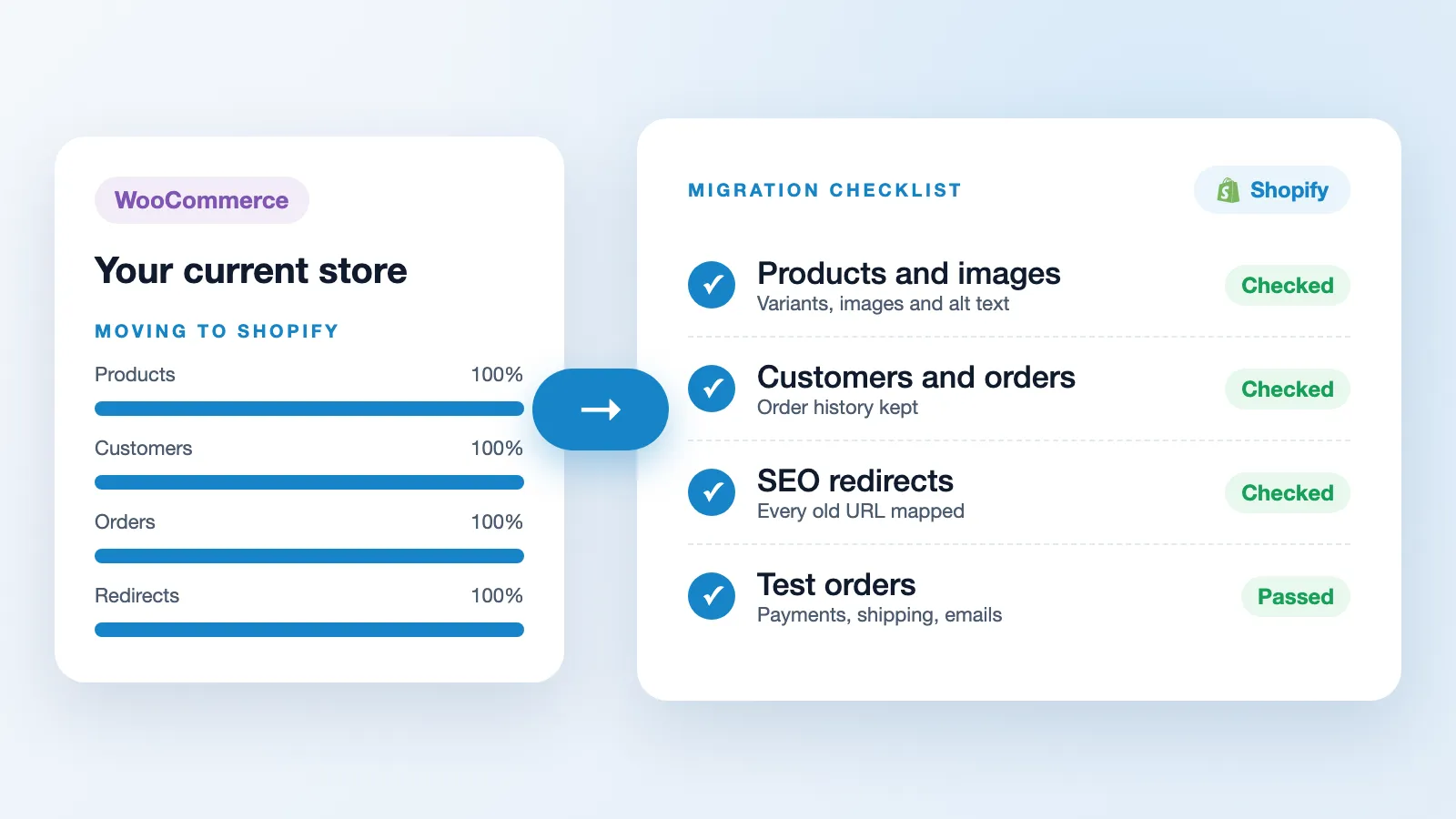
- Move products, customers and orders, then check them
- Redirect every old URL so Google rankings carry over
- Test checkout, then switch the domain at a quiet time
Thinking about leaving WooCommerce? You are not alone. Many store owners move to Shopify to stop worrying about hosting, plugin updates, security patches and a site that slows down as it grows. The move itself is the scary part: what if products go missing, customers can't log in, or Google rankings drop?
This checklist walks you through every step in plain language. Use it whether you do the move yourself or hire someone to do it for you.
Why stores move from WooCommerce to Shopify
- No hosting or server work. Shopify runs the servers, security and updates for you.
- Fewer things break. No more plugin conflicts after a WordPress update.
- A fast, reliable checkout that handles sale days without slowing down.
- Everything in one admin: products, orders, payments, shipping and apps.
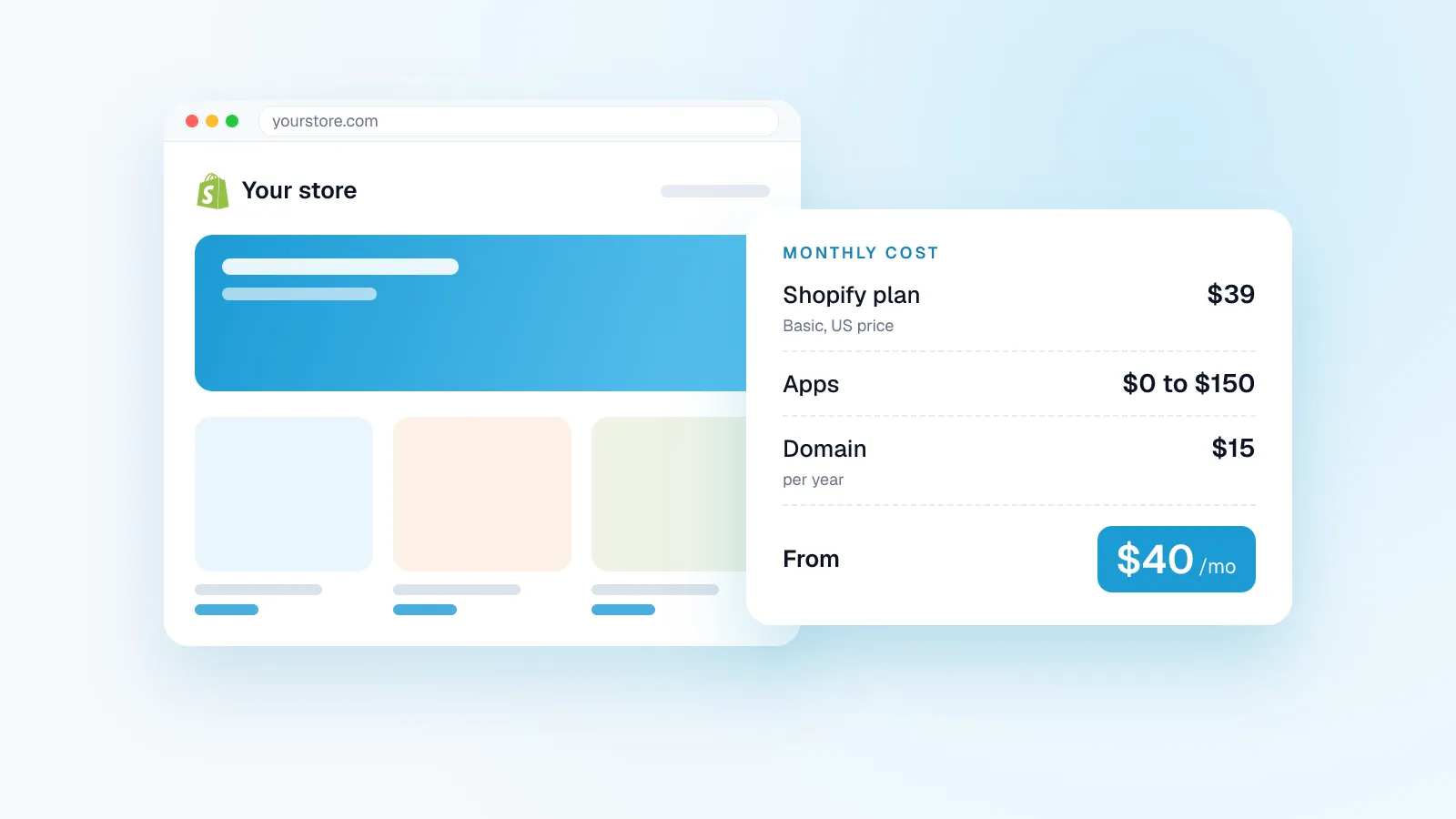
Worried about cost? See how much a Shopify store costs, from the monthly plan to apps.
Step 1: Before you move anything
- Take a full backup of your WordPress site and database. Keep it safe until long after launch.
- Count what you have: products, variants, customers, orders, reviews, blog posts and pages. You will compare these numbers later.
- Export a list of every URL on your site (products, categories, pages, posts). You need this for redirects.
- List your plugins and what each one does for you. Each one needs a Shopify app or custom code that does the same job.
- Note your settings: shipping zones and rates, taxes, payment methods, coupons and email templates.
- Pick a launch date on a quiet sales day, never right before a big sale.
Step 2: Set up your Shopify store
- Create your Shopify store and choose a plan.
- Pick a theme, or plan a custom design. This is a good moment to fix what customers disliked about the old store.
- Set up payments, shipping zones, taxes and your store policies.
- Install the apps that replace your WooCommerce plugins.
Step 3: Move your data
| What | Moves to Shopify? | Watch out for |
|---|---|---|
| Products and variants | Yes | Products with many attributes may need to be restructured, because Shopify limits the number of options per product. |
| Product images | Yes | Check that alt text comes across too. |
| Categories | Yes, as collections | Rebuild the menu after import. |
| Customers | Yes | Passwords cannot be moved for security. Customers set a new one by email. |
| Past orders | Yes | Imported as history, so customers see their old orders. |
| Reviews | Yes, with a reviews app | Import them into the app you choose. |
| Blog posts and pages | Yes | Check images and internal links inside each post. |
| Coupons, gift cards, subscriptions | Partly | Usually recreated by hand or with an app. |
Shopify's own Store Migration app can import from WooCommerce, and tools like Matrixify handle bigger or more complex stores. Whatever you use, compare the counts from Step 1 when you are done and spot check a few products, customers and orders by hand.
Step 4: Protect your Google rankings
This is the step most DIY moves get wrong. Shopify uses its own URL patterns, such as /products/, /collections/ and /blogs/, so most of your old links will change.
- Map every old URL to its new page using the list from Step 1.
- Add 301 redirects in Shopify for each one. A 301 tells Google the page has moved for good, so rankings follow it.
- Carry over titles and meta descriptions for your top pages.
- Keep your best content. Don't drop blog posts or pages that bring in traffic.
- After launch, submit your new sitemap in Google Search Console and watch for 404 errors for a few weeks.
Step 5: Test before you switch
- Place test orders with every payment method.
- Check shipping rates and taxes for your main countries.
- Check order, shipping and account emails.
- Open the store on a phone and click through the whole buying journey.
- Click a sample of old URLs and make sure each lands on the right new page.
Step 6: Launch day
- Do a last import of any orders and customers that came in since the first move.
- Point your domain to Shopify.
- Place one real order to confirm everything works.
- Email your customers about the new store and how to set their new password.
- Keep the old WooCommerce site offline but backed up, in case you need any data later.
Step 7: The first 30 days
- Watch Google Search Console for 404 errors and add any missing redirects.
- Compare traffic and sales with the weeks before the move.
- Ask a few customers how the new store feels, and fix the small things fast.
5 common migration mistakes
- No redirects, so rankings drop and old links show errors.
- Launching before a big sale, with no time to fix issues.
- Not counting data, so missing products are found by customers first.
- Too many apps installed on day one, which slows the store down.
- Not telling customers about the password reset.
Want us to move your store?
H3 Technologies is a Shopify Select Partner and has been a Shopify Partner since 2019, with a 4.8 rating from 26 reviews on the Shopify Partner Directory. We move your products, customers, orders and content, set up every redirect and test everything before launch, for a fixed price. Get a free migration quote.
Frequently asked questions
Will I lose my Google rankings if I move to Shopify?
Not if you redirect every old URL to its new page with 301 redirects and keep your titles and content. Rankings may move a little for a few weeks, then settle.
Can my customers keep their accounts?
Their details and order history move over, but passwords cannot. Customers get an email to set a new password.
Will my store go offline during the move?
No. Your WooCommerce store keeps selling while the Shopify store is built and tested. You only switch the domain on launch day.
How long does a WooCommerce to Shopify migration take?
It depends on the size of the store and whether the design changes. A small store with a theme can move fast; a large store with a custom design takes longer. Plan the date before you start.
Can I move my WordPress blog to Shopify?
Yes. Posts can be imported into Shopify's blog. Check images and links in each post, and redirect the old post URLs.